
Preview Member Offers
In order to test the configuration of your Placement, the Member Preview tab of the Placement Details screen allows you to select a Member, then view a list of Offers available to this Member across all Offer Campaigns that target this Placement.
To be considered "available" to a Member, the Offer must meet the following requirements:
-
The Offer has a status of Published, the Member meets the Offer's eligibility requirements, and the current date is within the Offer's effectivity period.
-
The Offer has been assigned to an Offer Campaign that targets this Placement.
-
The Offer Campaign has a status of Published, the Member meets the Offer Campaign's eligibility requirements, and the current date is within the Offer Campaign's effectivity period.
To preview the Offers available to a Member:
-
Select Campaigns from the top navigation bar, then select Settings > Placements from the side navigation menu. The Placements screen is displayed.
-
'Search for and select the desired Placement (see Search for a Placement for more information on the available search options). The Placement Details screen is displayed, with the Targeted Offers tab displayed by default.
-
Select the Member Preview tab.
-
Click into the Select a Member drop-down menu, then type all or part of the Member's name (you must enter at least three characters). From the list of matches, select the desired Member.
-
Click Preview Offers.
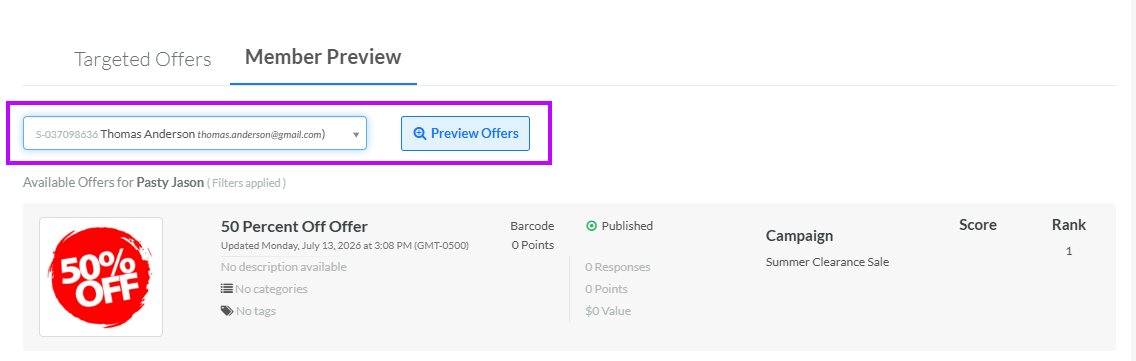
-
The platform displays a list of all the Offers available to this Member that are included within Offer Campaigns that target this Placement. The screen displays information about the Offer, including its name, type, status, and description. The platform also displays the name of the Offer Campaign in which the Offer is used, and the Offer's Score and Rank within that Offer Campaign. You can click an Offer to navigate to the Offer Details screen (see View an Offer for more information).
